The prompt that checks your wifi and tells you why it is slow
A user on X went from 216 to 669 Mbps because his router was badly set up. This Claude Code prompt measures your network and tells you if yours has the same problem.
Steps
- Open Claude Code on your computer, connected over wifi.
- Stop downloads and cloud backups. If you have a network cable, keep it at hand.
- Paste the prompt below and answer its four questions.
- Read the report. If it says everything is fine, do not touch anything.
- If it finds something, type "go ahead", log in to the router and change one thing at a time.
Where it comes from
@brunovolpato posted on X that he asked Claude Code to check his network and went from 216 to 669 Mbps down, with 39% less latency. He has a NETGEAR CAX30 router and 52 networks around him. This is what he changed:
- Raised the 5 GHz band from 40 to 80 MHz and turned on Wi-Fi 6.
- Moved from channel 36, which was crowded, to 48. On 2.4 GHz, from 9 to 11.
- Split the 2.4 and 5 GHz networks.
- Put Cloudflare's DNS ahead of Google's.
He changed the router settings by hand, following the steps the AI gave him. He gained that much because the router was badly set up: with Wi-Fi 6 off and the band on 40 MHz it was running at a third of what it could do. If yours is already set up well, the prompt tells you so and you gain nothing. That is what happened to me.
What you need
| What | Detail |
|---|---|
| Claude Code | With a paid Claude plan. Codex or any AI that runs commands on your computer works too |
| Computer | Connected over wifi. I tested it on a Mac, which needs nothing installed |
| Time | On my Mac the diagnosis took 11 minutes |
| Data | Each speed test uses close to 1 GB. Do not run it on mobile data |
| Network cable | Optional. With it you know how much gets lost over the air |
| Router access | Only if something needs changing |
The prompt
Act as a network technician. Diagnose my wifi and my home network, find out why it is slower than it should be and walk me through fixing it.

RULES
- Read-only until I say otherwise. Do not change any setting on the computer or the router without first showing me the exact change, the current value and how to undo it, and without me answering "yes".
- Run the tests one at a time. Never two at once, because they get in each other's way and skew the result.
- If a command asks for an admin password, does not exist on my system or does not return the value, skip it, tell me and use another one. Do not use sudo.
- Do not ask me for passwords or type them yourself. I log in to the router.
- Do not touch anything that is not the wifi: no open ports, no firewall, no factory resets.
- Give me real figures with their unit. If you could not measure something, say so and do not estimate it.
- Do not show my network name, my passwords or any MAC address on screen.
- Each speed test uses close to 1 GB. If I am on mobile data, warn me and stop.
- Run commands with LC_ALL=C so decimals come out with a point.

PHASE 0. ASK ME THIS AND WAIT FOR MY ANSWER
1. How many Mbps I pay for and with which provider. If I do not know, carry on without it.
2. How many metres and how many walls there are between the computer and the router.
3. What I notice: slow all the time, now and then, in one room or on video calls.
4. Whether I have a network cable at hand for phase 8.
Check yourself that the computer is on wifi and not on a cable. If it is on a cable, ask me to unplug it.

PHASE 1. THE COMPUTER
Detect the operating system and the model, and which wifi its card supports. If 6 GHz channels show up in the channel list, it supports Wi-Fi 6E. Check for a VPN, a proxy or a manually set DNS. Measure for 5 seconds how much traffic is going through the wifi interface right now. If it is above 5 Mbps, something is downloading or uploading: tell me before going on.

PHASE 2. THE WIFI LINK
Measure the band (2.4, 5 or 6 GHz), the channel, the channel width, the standard (802.11n, ac, ax or be), signal and noise in dBm, the gap between them (SNR) and the link rate in Mbps. Take it three times in a row.
On macOS use system_profiler SPAirPortDataType. On Windows, netsh wlan show interfaces. On Linux, iw or nmcli.

PHASE 3. THE NEIGHBOURS' NETWORKS
Scan the 5 GHz networks around me, and the 2.4 GHz ones only if I am connected on that band. Give me a table by channel with how many networks there are and how strong each one arrives. Tell me which ones fall in the same channel block as mine and which block is the emptiest.
On macOS, system_profiler only gives the signal of some networks. If any are missing, write a short Swift script with CoreWLAN (scanForNetworks) and run it: it returns the channel, width and signal of all of them, without sudo. On Windows, netsh wlan show networks mode=bssid.
macOS hides network names. If a network shows up on my channel with my signal, it may be mine: ask me before counting it as a neighbour.

PHASE 4. FROM THE COMPUTER TO THE ROUTER
Find the default gateway and ping it with 50 packets, one every 0.2 seconds. Give me the average, the maximum, the standard deviation and the packets lost.

PHASE 5. FROM THE ROUTER TO THE INTERNET
The same ping to 1.1.1.1 and to 8.8.8.8, and an 8-hop traceroute to 1.1.1.1. Compare it with phase 4. If the ping to the router already has spikes, the problem is inside the house. If the router answers well and the outside is bad, it is the provider.

PHASE 6. DNS
Tell me which DNS the system uses. With 10 well-known domains, measure how long the first one on that list, the gateway, 1.1.1.1, 8.8.8.8 and 9.9.9.9 take to answer, and keep the median of each. If one does not answer within 2 seconds, note it and move on. Remember that DNS does not change your Mbps: it changes how long a site takes to start loading.

PHASE 7. SPEED
Measure three times, with a 15-second pause, download and upload separately, never at once. Give me the median and the range, not the best. Tell me which server you measured against and which country it is in: if it is outside mine, the latency of that test is no use for complaining to the provider.
On macOS use networkQuality -s -v. The -s makes it measure upload first and then download; without it both run at once and the result comes out lower than the real one. On Windows and Linux, Ookla's speedtest command line tool if it is installed. If it is not, download and upload a large test file with curl.

PHASE 8. WHETHER IT IS THE WIFI OR THE LINE
If I have a network cable, ask me to plug it into the router, turn wifi off only if I confirm, and repeat phase 7. The gap between cable and wifi is what gets lost over the air.
If I have no cable, do not estimate it. Tell me what points to the wifi (spikes in the ping to the router, weak signal, download much worse than upload) and what points to the line (router with no spikes and low speed in both directions).

REPORT
1. A table with each measurement, its value and a verdict (good, fair or bad) on this scale:
   - Signal: better than -60 dBm, good. From -60 to -70, fair. Worse than -70, bad.
   - SNR: 25 dB or more, good. From 15 to 25, fair. Under 15, bad.
   - Ping to the router: average under 10 ms and no spike over 50 ms, good. With spikes over 50 ms, fair. With packets lost, bad.
   - Channel width on 5 GHz: 80 or 160 MHz, good. 20 or 40 MHz, bad.
   - Standard: 802.11ax or be, good. If my card supports Wi-Fi 6 and I am connected on n or ac, fair: the router needs a look.
   - Speed against what I pay for: 80% or more, good. From 50 to 80%, fair. Under 50%, bad.
2. The main bottleneck in one sentence, and which figure tells you so.
3. The problems ordered from most to least impact. For each one: what to change, where, the current value and the new one, and what can go wrong. Say how many Mbps I can expect to gain only if you have a figure that backs it.
4. If everything is set up well, tell me plainly and do not make up changes. In that case tell me what is left: moving the router closer, a cable, a repeater or calling the provider.
5. What you could not measure.

FIXES, ONLY WHEN I SAY "GO AHEAD"
Get the router's brand and model by opening the gateway in the browser, or ask me. Give me the exact menu path for each setting. If the panel asks for a user and password, tell me where they usually are on that model.
Check in this order: that Wi-Fi 6 is on, the 5 GHz channel width, the channel, whether the 2.4 and 5 GHz networks are merged or separate, the transmit power, and that 2.4 GHz is on 20 MHz.
One change at a time. Warn me that the wifi drops for a few seconds when applying, and that on channels 52 to 144 it can take up to 10 minutes to come back. After each change repeat phases 2, 4 and 7. If the result gets worse, tell me how to put it back before trying the next one.

WHEN YOU FINISH
A before and after table with download, upload, ping to the router, signal, channel and channel width. Below it, the list of what we changed with its original value, in case I want to go back.
It works read-only: it measures, gives you the report and changes nothing until you type "go ahead". You type the router passwords yourself.
What it measures
| Measurement | What it is | Good | Bad |
|---|---|---|---|
| Signal | How strong the router reaches you, in dBm | Better than -60 | Worse than -70 |
| SNR | How far the signal is above the noise | 25 dB or more | Under 15 |
| Standard | The wifi version | 802.11ax, which is Wi-Fi 6 | n or ac on a router that supports ax |
| Channel width | How much spectrum your network takes on 5 GHz | 80 or 160 MHz | 20 or 40 MHz |
| Ping to the router | How long a packet takes to go and come back inside the house | Under 10 ms with no spikes | Spikes over 50 ms or lost packets |
| Speed | How much of what you pay for reaches you | 80% or more | Under 50% |
The ping to the router tells the two problems apart. If it already has spikes, the fault is inside the house. If the router answers well and the speed is low in both directions, call your provider.
Which changes give you Mbps
| Change | How much you notice it |
|---|---|
| Turning on Wi-Fi 6 | A lot, if it was off and your computer supports it |
| Moving 5 GHz from 20 or 40 MHz to 80 | A lot. It is what gave the viral post most of its gain |
| Changing channel | Only if you share the channel with a strong neighbouring network |
| Splitting 2.4 and 5 GHz | A lot, if the computer was joining 2.4 GHz without you knowing |
| Changing DNS | Nothing in Mbps. Sites start loading a few milliseconds sooner |
| A network cable | It gives the most. Wifi always loses some on the way |
No change gives you more Mbps than you pay for.
What I got
I pay for 500 Mbps symmetric with Digi, a Spanish provider, and have a ZTE H3600P router. The computer is a Mac Studio on wifi in another room.
| Measurement | Value | Verdict |
|---|---|---|
| Standard | Wi-Fi 6 | Good |
| Channel and width | 48, at 160 MHz | Good |
| Signal | From -62 to -65 dBm | Fair |
| SNR | From 28 to 30 dB | Good |
| Ping to the router | 9.6 ms average, with spikes of 84 ms | Fair |
| Router DNS | 4 ms. Cloudflare's, 13.5 ms | Good |
| Download | 275 Mbps, 55% of what I pay for | Fair |
| Upload | 469 Mbps, 94% | Good |
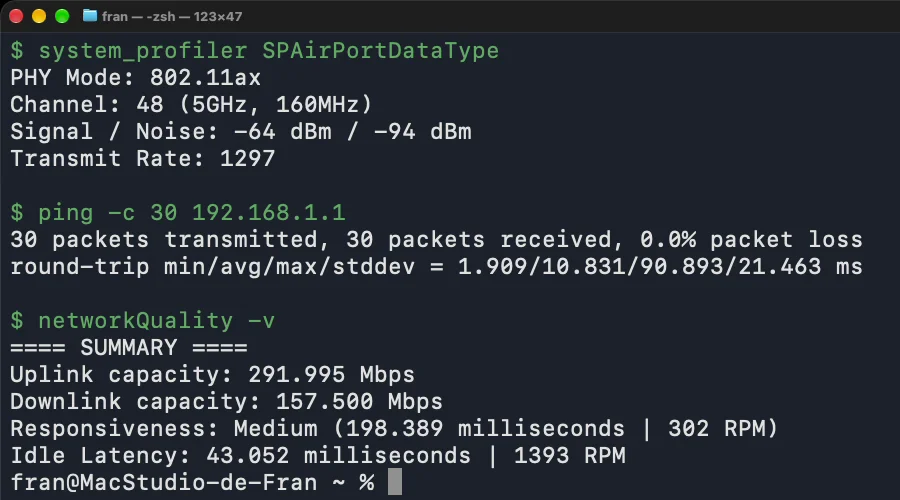
The download and upload in the table come from one pass measuring each on its own. With both at once, which is the Mac's default, the median of three passes was 200 Mbps down and 347 up. That is why the prompt asks for networkQuality -s.
I logged in to the router and it already had everything the viral post fixed: Wi-Fi 6 on, automatic channel, 160 MHz and power at 100%.
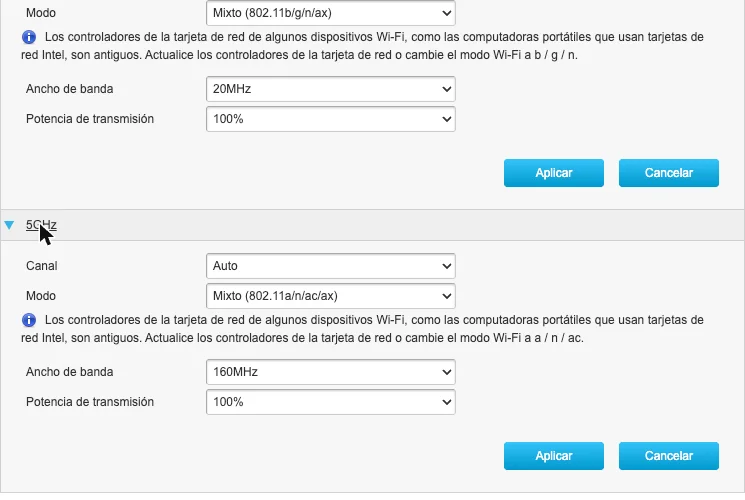
I tried the only change left, going from 160 down to 80 MHz. Download fell to between 62 and 78 Mbps. I put it back on 160 MHz and it returned to between 178 and 300.
The report says my problem is the air between the computer and the router: upload arrives almost whole, so the line delivers what I pay for, and the ping to the router has spikes. The first thing it recommends is a cable. I have not tried it yet.
How to log in to the router
Open the default gateway in the browser, which is nearly always 192.168.1.1. The user and password are usually on the label under the router. If they do not work, call your provider and ask for the router login password.
On my Digi ZTE the user is user and the settings are under Red local, WLAN, WLAN básica, Configuración global de WLAN. Write down the current value before changing anything.
Do not press the reset button to recover the password. It wipes the router's whole configuration.
What goes wrong
- If your router is already set up well, you gain nothing. The prompt lets you know in 11 minutes.
- I have only tested it on a Mac. For Windows and Linux the prompt says which commands to use, but I have not checked them.
- On a Mac the neighbouring networks come without a name, and the usual command only gave the signal of 2 of the 20 it found. That is why the prompt asks for a Swift script, which gives all of them.
- The Mac's speed tool measures against Apple servers and does not let you choose. Mine was in Frankfurt. The latency of that test is no use for complaining to your provider.
- Changing the channel or the width drops the wifi for a few seconds. On channels 52 to 144 the router listens for radar first and can take up to 10 minutes to come back.
- Three speed tests are about 3 GB of data.
The viral post's figures come from @brunovolpato's post. The rest are from my tests on November 27, 2026 on my own network.